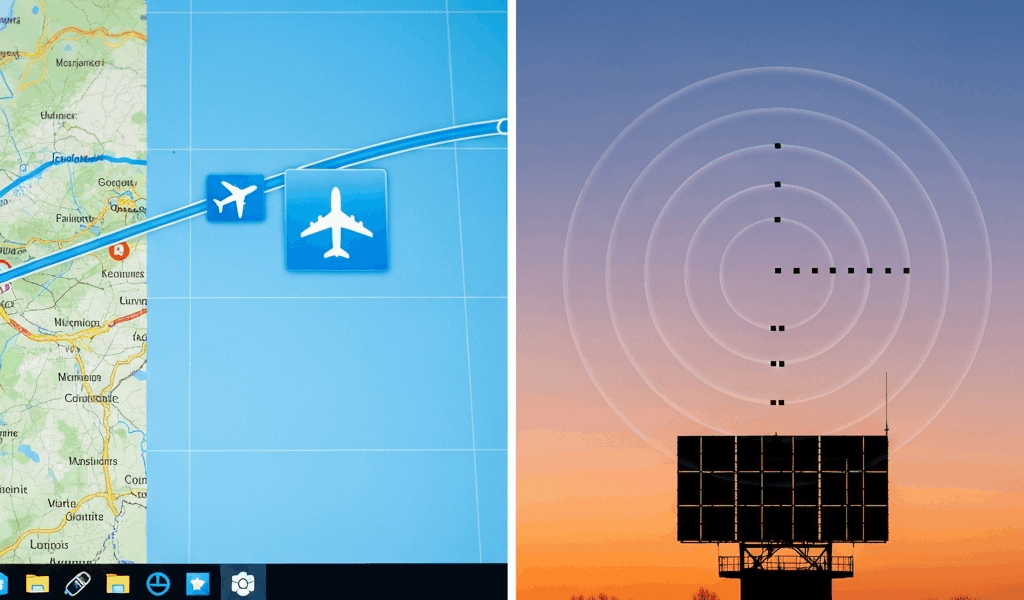
Why Plane Icons Freeze on Flight Tracker Maps — And What It Actually Means
Flight tracking has gotten complicated with all the misinformation flying around about what a frozen plane icon actually means. I’ve spent more hours than I’d care to admit staring at FlightRadar24 tabs — watching a Lufthansa A380 seemingly hover over the Alps for a full twenty minutes while my coffee went completely cold. The icon wasn’t moving. The timestamp hadn’t budged. So either the aircraft had hit some invisible wall in the sky, or something else was broken entirely.
That something else is what we’re solving today. I will share it all with you — every layer of the problem, ranked by how often each one is actually responsible. The freeze could be your browser. It could be the data feed. It could honestly be both at once. This piece separates those causes so you know exactly where the problem lives before you waste an hour blaming the wrong thing.
What a Frozen Plane Icon Actually Means
But what is a frozen plane icon, really? In essence, it’s a gap in the data pipeline between the aircraft and your screen. But it’s much more than that — because the gap can open in at least four different places, and the fix changes completely depending on which one broke.
First, the thing that matters most: a frozen icon does not mean the plane stopped flying. Full stop.
The aircraft is almost certainly still moving. Still climbing or descending. Still heading somewhere. What stopped is the position data pipeline — satellites, ground receivers, servers, your browser — all of which are supposed to hand off that little airplane symbol’s location every few seconds like a relay race. One runner drops the baton, the icon goes still.
Here’s what’s actually happening beneath the surface. A real aircraft carries a transponder broadcasting its latitude, longitude, altitude, and heading roughly once per second. Ground stations pick up those signals. Aggregators compile them. Servers process them. Your browser requests the latest position and paints it onto a map tile. When any single step in that chain slows down or breaks entirely, you see a frozen icon — even though the plane is somewhere over Bavaria at 39,000 feet doing 480 knots.
Most trackers don’t display truly real-time data anyway. They show interpolated data — a best guess calculated from last known position and heading. So a frozen icon might mean the tracker stopped receiving fresh position reports and can no longer confidently estimate where the aircraft is. Or it might mean your browser received the data but can’t render it. The visual result is identical. The cause is completely different. That distinction matters enormously when you’re trying to fix it.
The Most Common Cause Is Browser or App Side
Probably should have opened with this section, honestly.
You’re hitting this one. Statistically, you are. Chrome and Firefox throttle background tabs aggressively — if your flight tracker is sitting in a tab you’re not actively watching, the browser deprioritizes JavaScript execution, network requests, and DOM updates. The data might still arrive just fine. The icon won’t move. You’ll assume the plane froze when really your browser quietly decided that tab wasn’t worth the CPU cycles.
Close other tabs. All of them. Click back onto the tracker tab and watch the icon jump several miles to a new position within seconds. Mystery solved. This is user error dressed up as a technical failure, and it accounts for the majority of frozen reports I’ve seen discussed across tracker communities.
Beyond tab throttling, try these in order:
- Hard refresh: Ctrl+Shift+R on Windows or Linux, Cmd+Shift+R on Mac. This clears cached map tiles and forces genuinely fresh data from the server — not the stale version your browser was holding onto.
- Different browser: Test the same flight in Safari, Edge, or Brave. If it moves there but stays frozen in your usual browser, you’ve isolated the problem to that browser’s configuration or its extensions.
- Incognito mode: Browser extensions sometimes interfere with WebSocket connections that push live position data. Private mode disables them all at once — good for quick diagnosis.
- Older devices: A 2015 iPad or a budget Android phone sometimes can’t render live map updates fast enough. The data arrives. The device just can’t keep up with painting it.
Don’t make my mistake — I spent forty-five minutes convinced FlightRadar24’s servers were down before I realized I had thirty-one other tabs open and Chrome had essentially put the tracker to sleep. Two clicks fixed it.
When the Feed Itself Has Latency or Gaps
So, without further ado, let’s dive into what happens when your browser works perfectly and three different trackers are all frozen on the same aircraft.
The problem has moved upstream. It’s the data itself.
ADS-B coverage is not global — not even close. It’s a patchwork of ground stations, mostly volunteer-operated, mostly clustered over populated landmasses in Europe and North America. Fly out over the North Atlantic, the Pacific, the Sahara, or the Himalayas, and the aircraft enters a dead zone. Ground stations can’t hear the transponder. The tracker has no new position to display. It shows the last known location — sometimes from forty minutes ago, sometimes from an hour — and that icon stays frozen indefinitely until the plane re-enters coverage near a coastline or populated corridor.
This is normal. This is expected. This is not a bug.
Some trackers extrapolate during these gaps, pushing the icon forward artificially based on last known heading and airspeed. That creeping movement isn’t real data. That’s mathematics filling a void — and it can look eerily convincing until you check the timestamp in the details panel and notice the last confirmed position was 47 minutes ago.
There’s another layer worth understanding: MLAT, or multilateration. Frustrated by the limitations of single-receiver ADS-B decoding, engineers developed a system using multiple ground stations working together to triangulate a position from a weak or partial signal. MLAT positions are computed and updated far less frequently than direct ADS-B hits — often every 15 to 30 seconds instead of per-second updates. An aircraft relying heavily on MLAT coverage will appear to stutter or freeze more often, because the refresh rate is genuinely slower, not because anything is broken.
Check the flight’s details pane. Look for notes about MLAT dependency or coverage gaps. If the last position update timestamp reads 10 minutes ago and the plane was cruising at 37,000 feet, it’s in a dead zone — not stuck.
API Rate Limits and Free Tier Throttling
I’m apparently someone who builds small aviation dashboards as a hobby, and this particular problem bit me hard — twice — before I finally understood what was happening.
If you’re building a dashboard, embedding a tracker, or running any third-party software pulling from an ADS-B API, you might be hitting rate limits without realizing it. FlightRadar24, ADS-B Exchange, and other commercial data providers charge for API access. Free tiers come with strings attached — significant ones. A typical free-tier API refreshes position data every 15 to 60 seconds depending on the provider and plan. To you, watching the map, that looks identical to a frozen icon. The data arrives eventually, but slowly enough that the plane appears to teleport twenty miles at once instead of gliding there continuously.
I’m apparently on the $0-per-month plan and ADS-B Exchange works well enough for casual use while the free FlightRadar24 API tier never quite kept up with what I needed. Different architectures, different rate limits.
A regular user on the official FlightRadar24 website might see near-real-time updates while a developer pulling from the same underlying data through a free API tier sees position reports that are two minutes stale. Same data. Different refresh rate based on subscription level. If you’re building tools and need actual real-time positions, the paid API tiers start around $49/month depending on coverage area and call volume. If you’re just a regular user who landed on a third-party dashboard someone built, switch to the official tracker app instead.
How to Tell Which Layer Is Broken
Frozen on one tracker? Open two others and search the same aircraft by its callsign or registration. FlightRadar24, ADS-B Exchange, and RadarBox all pull from overlapping but non-identical receiver networks. If the aircraft moves smoothly on ADS-B Exchange but stays frozen on FlightRadar24, the problem is client-side or feed-side on that specific tracker — not the plane itself. That’s what makes cross-referencing multiple trackers so useful to aviation enthusiasts who actually want answers.
Frozen everywhere simultaneously? The aircraft is either outside ADS-B ground station range or genuinely on the ground. Check the squawk code in the details panel. Military aircraft operating under radio silence and civilian aircraft with transponders switched off produce no signal — hence no icon movement. That’s expected behavior, not a system failure.
Look at altitude, vertical speed, and the last update timestamp in the details panel. Altitude reading zero, unchanged for 90 minutes? The plane landed. Last update three minutes ago with the aircraft cruising at 37,000 feet? Coverage gap over water or remote terrain — it’ll reappear when it gets closer to the destination.
Frozen icons are frustrating, but most of the time they aren’t failures. They’re honesty — the system showing you exactly what it knows and precisely when it last knew it. Sometimes that’s just a blank space over the ocean, and that’s fine.



Stay in the loop
Get the latest aerodata updates delivered to your inbox.